Rolling and targeting
Choose what to do
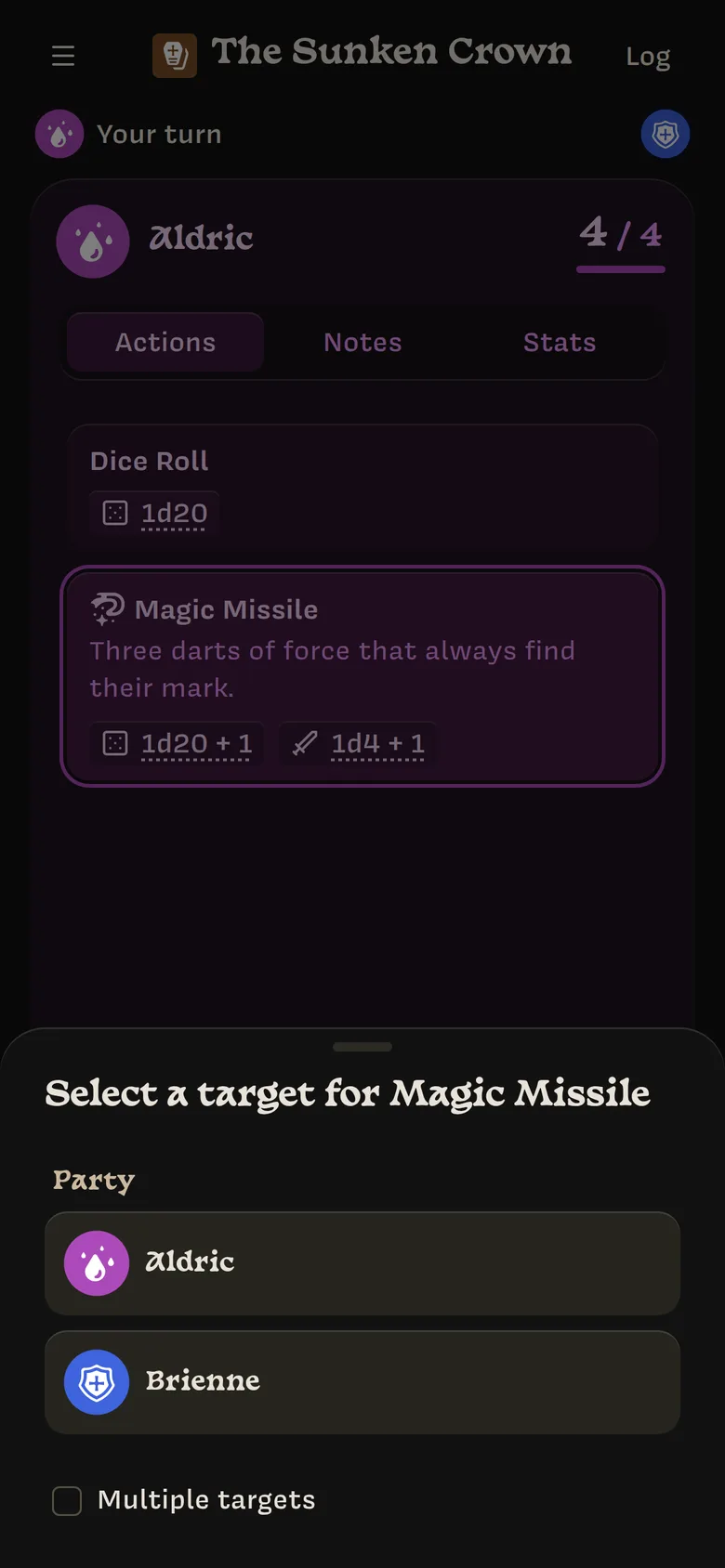
On the Actions tab, tap an action. If you don’t choose one, you roll a plain Dice Roll (1d20).
Pick a target (optional)
Tap Pick target and choose who you’re aiming at. For actions that deal damage, enemies are listed first under NPCs; for healing, your Party comes first. Tick Multiple targets to choose more than one, then tap Select.
The button then shows your target’s name, or how many you picked. Targets reset after each roll.
Throw the power crystal
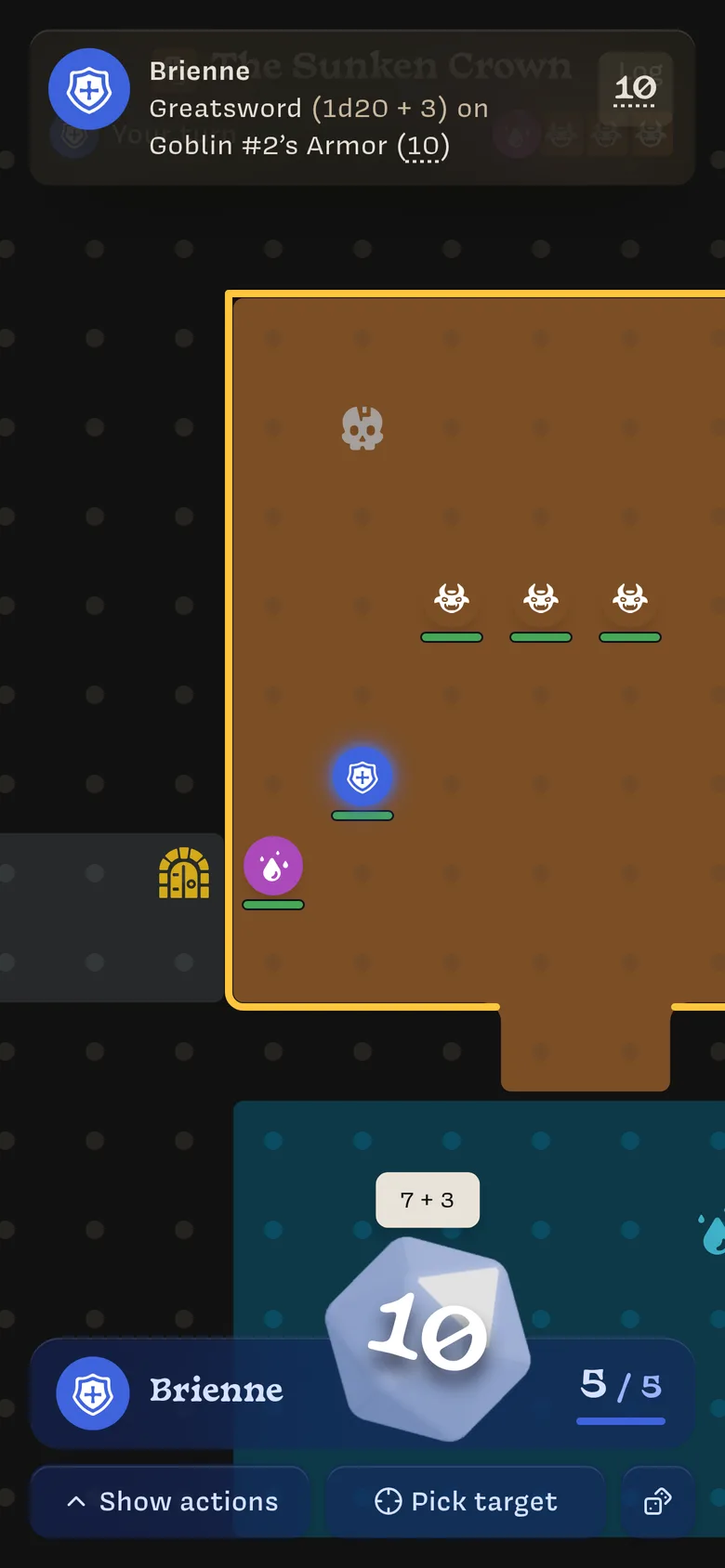
Drag the crystal and flick it. When it lands, it shows your result and the roll goes to the log for everyone to see.
What happens next
Your roll appears in the log. If the action has a Target Stat, the log shows the number you’re rolling against, such as Goblin #2’s Armor (10).
The Owner decides whether you succeed and applies any damage or healing. When they do, you’ll see it in the log, such as Goblin #2 took 9 damage.
A critical (every die in your first roll showing its highest face, like a natural 20) glows in the log.
Custom rolls
Sometimes the Owner asks you to roll something different, like advantage or a penalty. Tap the 🎲 button next to Pick target to change the dice for this one roll:
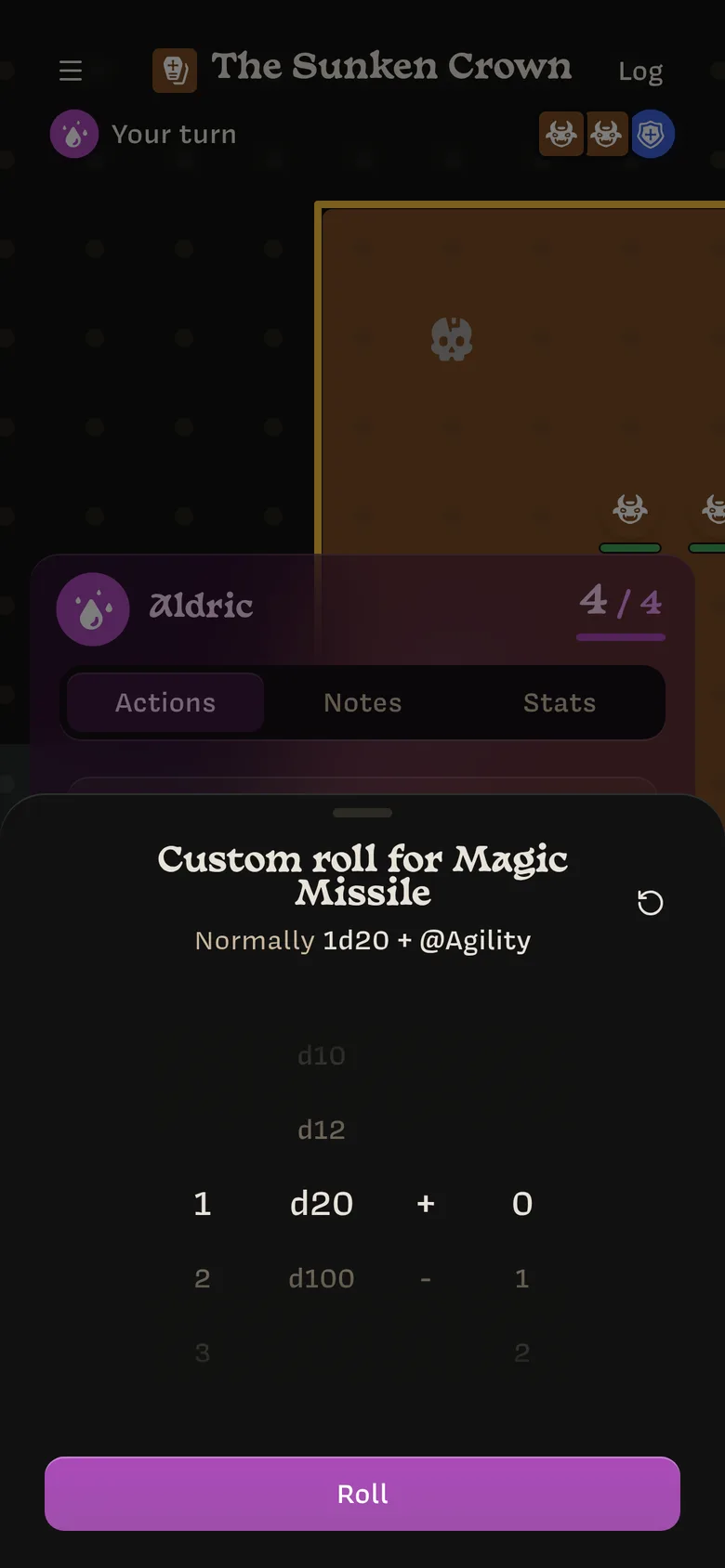
- Spin the wheels to choose how many dice (1 to 10), which die (d2 to d100), and a bonus or penalty (−10 to +10).
- ↺ puts it back to the action’s normal roll.
- Tap Roll to roll it.
The log marks a custom roll with * so everyone can see it was changed.
If an action can’t be rolled, for example because its Target Stat is gone, you’ll see a message such as The Target Stat no longer exists. Ask your Owner to fix the action.