The campaign screen
When you open a campaign you own, you get the Owner layout. The map fills the screen, and panels float on top of it.
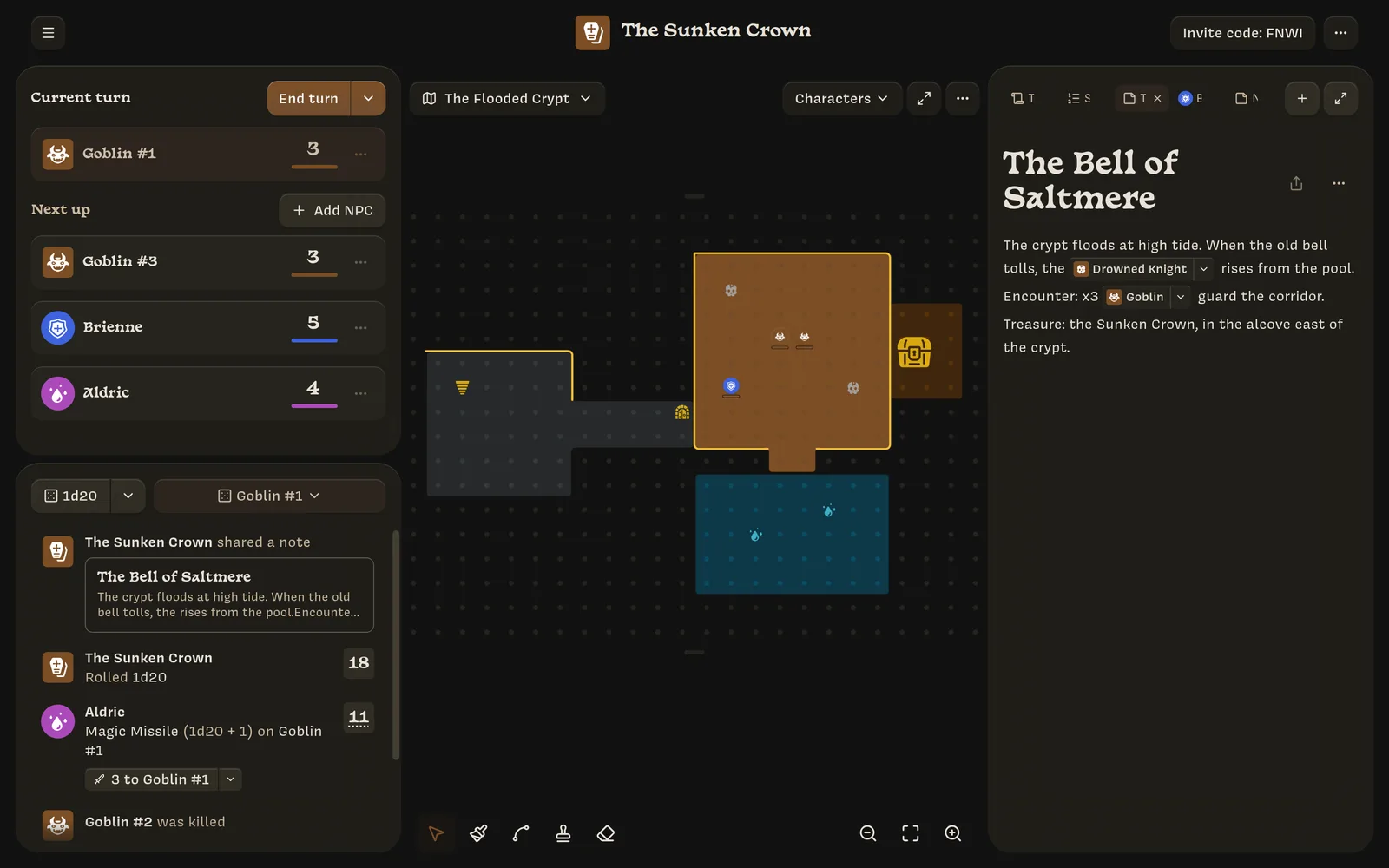
| Area | What it’s for |
|---|---|
| Top bar | ☰ goes back home. Also holds the campaign’s sigil and name, the Invite code button, and the ⋯ Campaign options menu. |
| Turn order | Top left. Who’s acting now and who’s next. See Turn order. |
| Log | Bottom left. Rolls, damage, and other events, newest first. See The log, rolls, and effects. |
| Map | Center. The current map, with its tools along the bottom. See Maps. |
| Right panel | Tabs for notes, characters, stats, and templates. |
Resizing and hiding panels
- Resize a side panel by dragging its inner edge. Panels can be 300 to 700 pixels wide.
- Expand the map with the ⤢ button in the map’s top-right corner. Both side panels slide away to thin strips. Hover over a strip to slide its panel back.
- Expand the right panel with the ⤢ button in its tab bar. This hides the map and left panel, which is handy for writing notes.
The right panel and tabs
The right panel works like browser tabs. Anything you open (a note, a character, the Stats list, the Templates list) opens as a tab. Drag tabs to reorder them and click ✕ to close them. Lore remembers your tabs for each campaign on that computer. Tabs close by themselves when their item is archived.
New tab
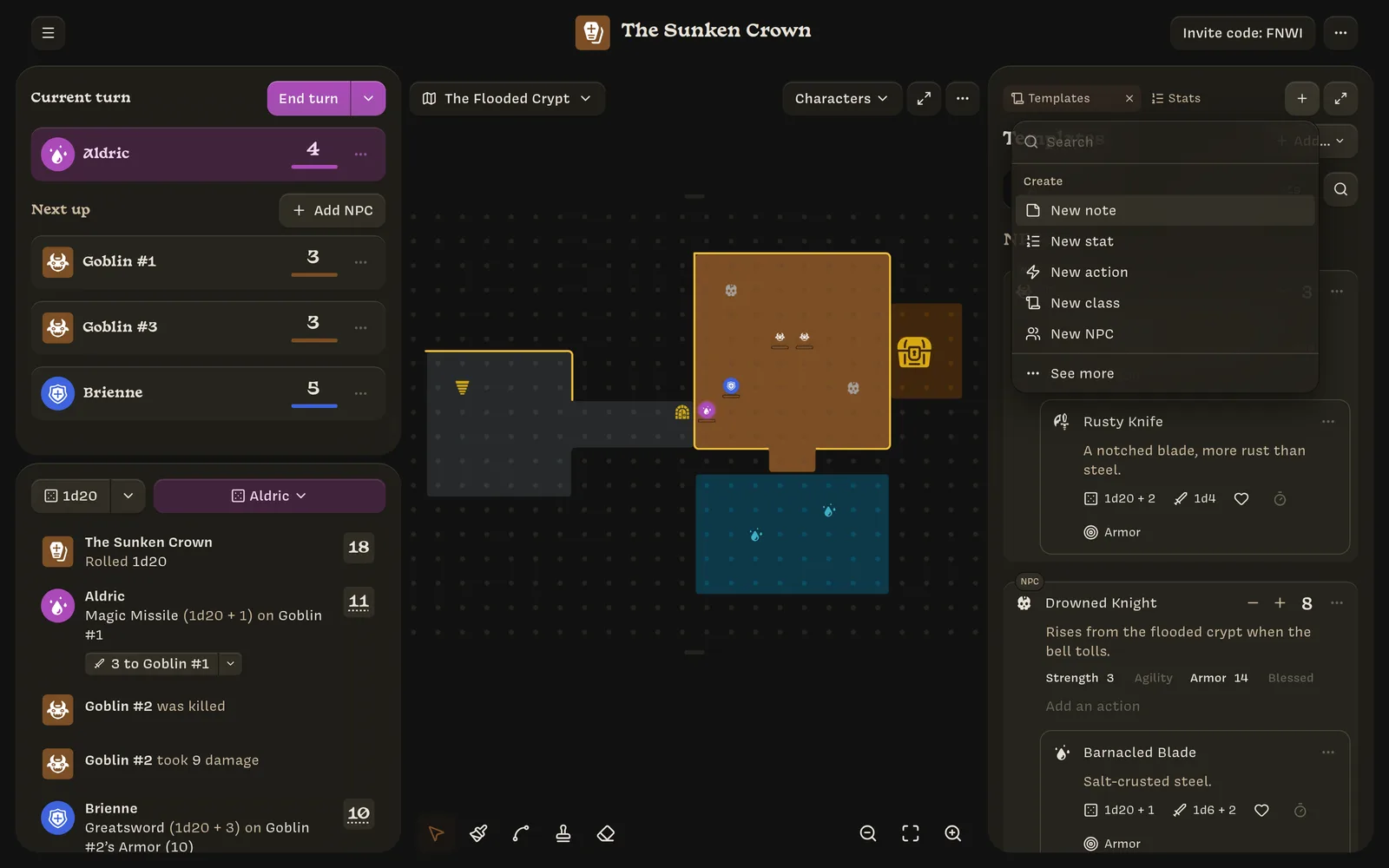
Click + in the tab bar to open a search box. Type to find any note, character, stat, template, or map, or create something new:
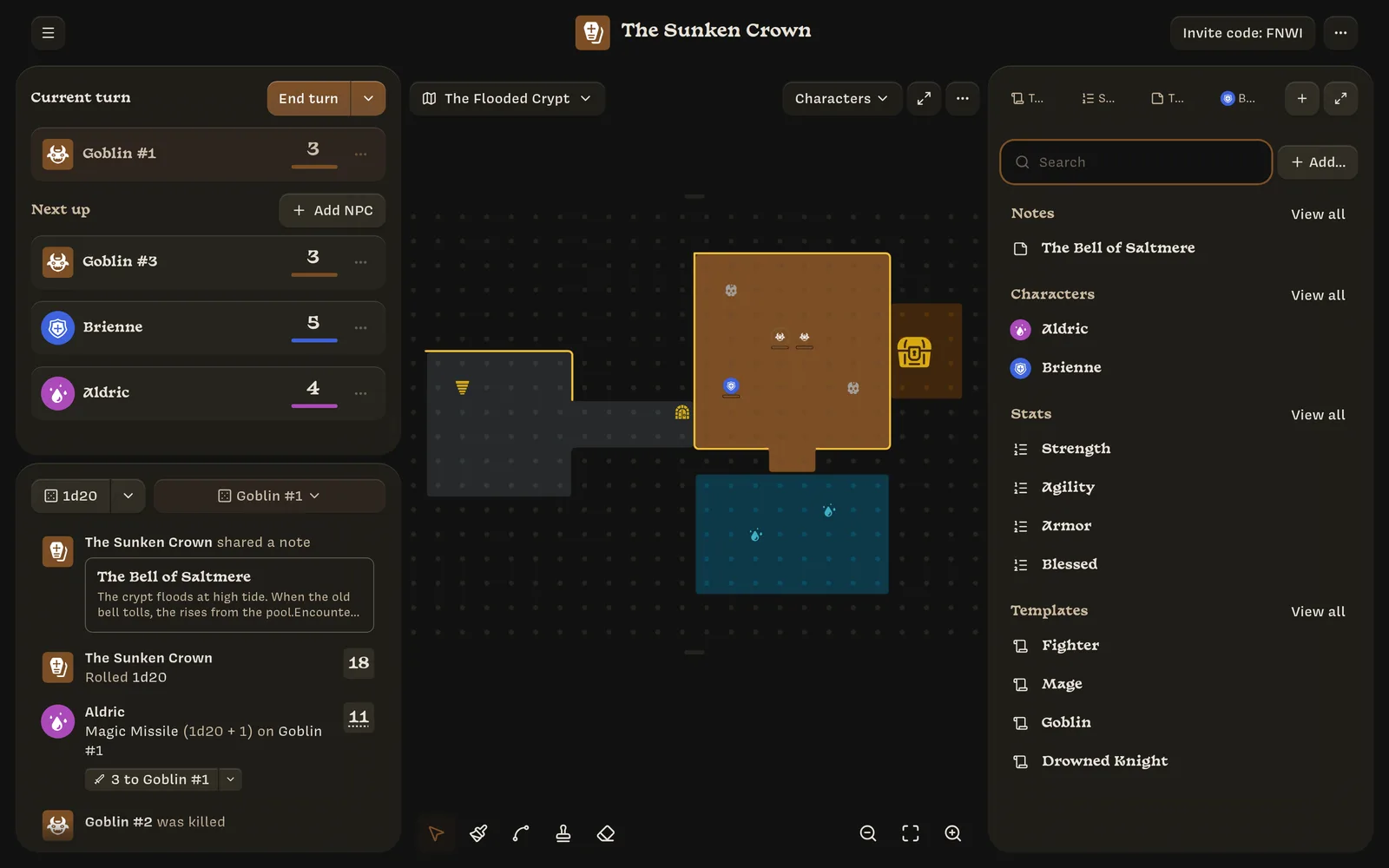
If you close every tab, the right panel shows an overview of the campaign: search, then Notes, Characters, Stats, and Templates, each with View all.
Keyboard shortcuts: Ctrl T opens a new tab and Ctrl W closes the current one on a Mac. On Windows and Linux, use Alt T and Alt W. See all keyboard shortcuts.