Getting started
Sign in
Every page in Lore requires an account. If you open Lore while signed out, you’re sent to the sign-in page, where you can also create an account. Owners see your account’s email address or username in their player list, so use one your group will recognize.
To sign out or manage your account, use the avatar button in the top-right corner of the home screen.
Deleting your account
Open the avatar menu and choose Delete account, then type DELETE to confirm.
Lore erases your account and every campaign you own, including their backups. In
campaigns you’ve joined, it erases your journal, the notes you shared and any
character you were still creating. Characters you played stay in the Owner’s
campaign. This can’t be undone, so export any campaign
you want to keep first.
The home screen
The home screen looks different on a computer and on a phone.
On a computer: your campaigns
On a computer, the home screen is titled My campaigns and lists the campaigns you own. Each card shows the campaign’s sigil and color, its name, and when it was last played. Click a card to open the campaign.
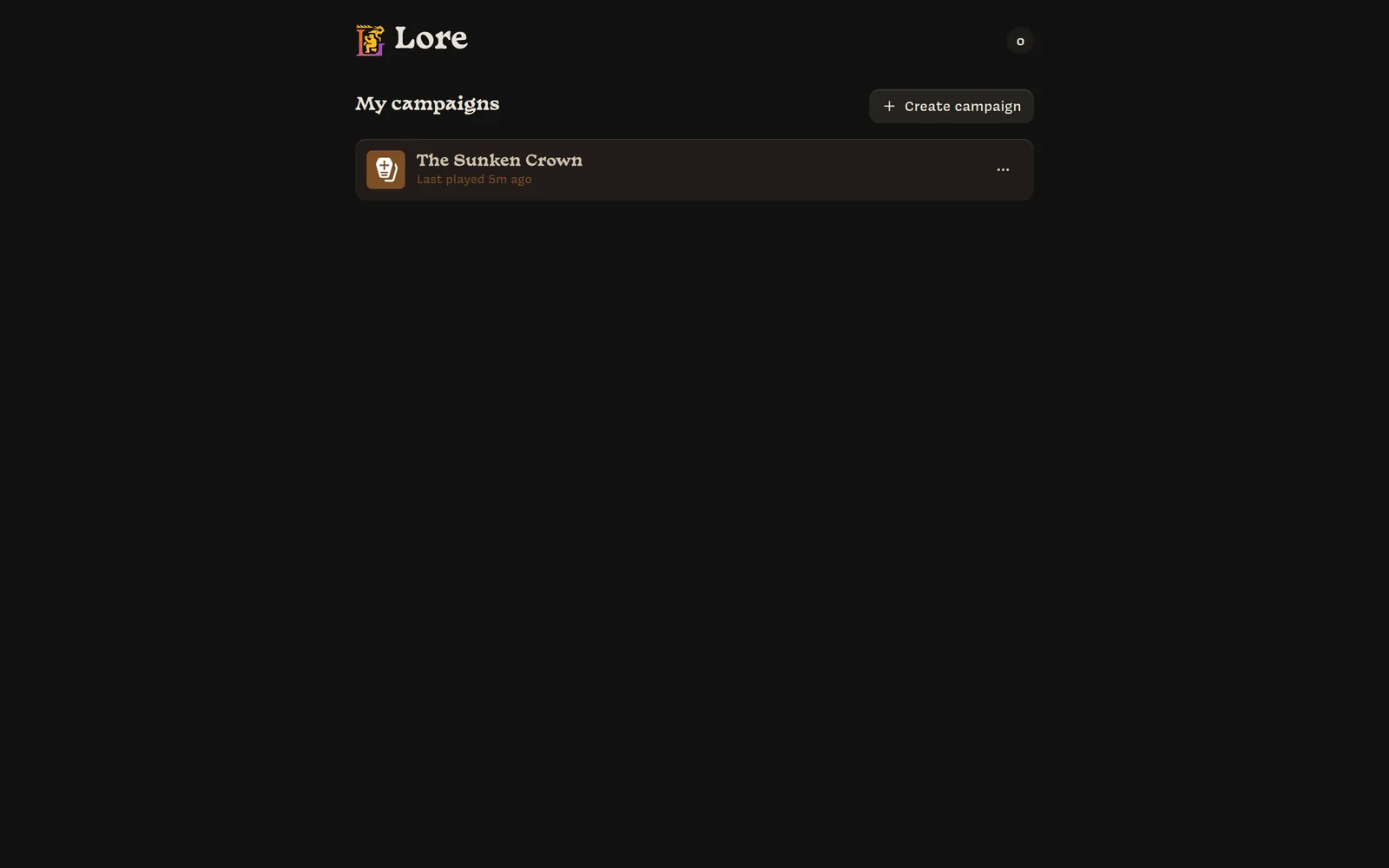
If you don’t own any campaigns yet, you’ll see No campaigns yet and a Create campaign button. See Creating campaigns.
Campaigns you’ve joined as a player are not listed on the computer layout. Open Lore on your phone to see them. A browser window narrower than 768 pixels also shows the phone layout.
On a phone: campaigns you’ve joined
On a phone, the home screen lists the campaigns you’ve joined. Tap a card to slide into that campaign, and tap the ☰ button to come back. Use Join in the top-right corner to join another campaign.


Campaigns can only be created from a computer. The empty phone home screen says Use a computer to create a campaign.
Install Lore on your phone
Lore works in any mobile browser, but it’s best installed to your home screen. Installed, it opens full screen like an app.
On iPhone, Safari offers this with an Install Lore sheet the first time you visit:
Tap the Share button
The Share button is in Safari’s toolbar.
Tap More (iOS 26 and later)
On iOS 26 and later, tap More to see the rest of the share options.
Tap “Add to Home Screen”
Scroll down to find Add to Home Screen.
On Android, use your browser’s Install app or Add to Home screen menu item.
Next steps
- Running a game? Read the Owner quickstart.
- Joining a friend’s game? Read the Player quickstart.