Playing on the map
When the Owner puts your character on a map, Lore switches to map mode. The map fills the screen, with your character card and the power crystal at the bottom.
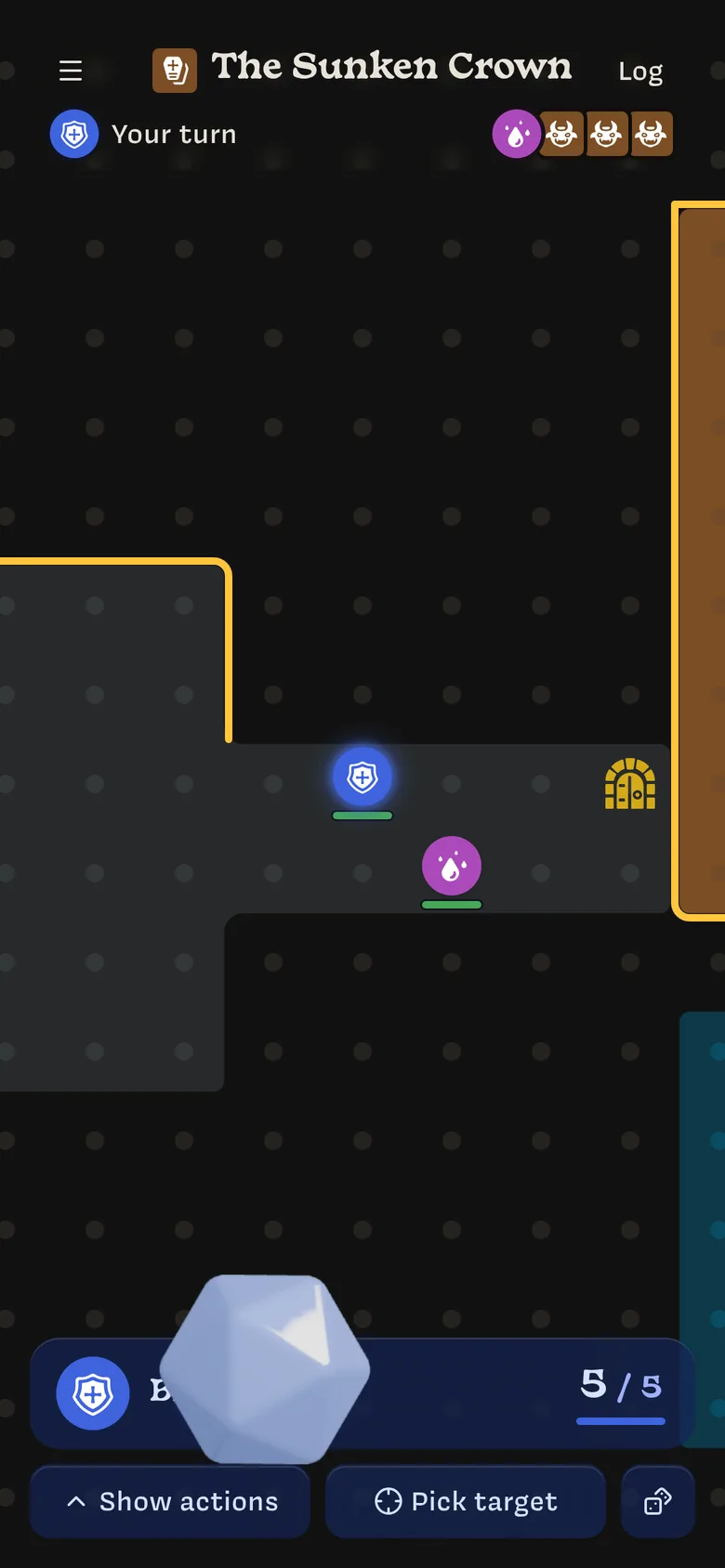
- Pinch to zoom and drag to look around.
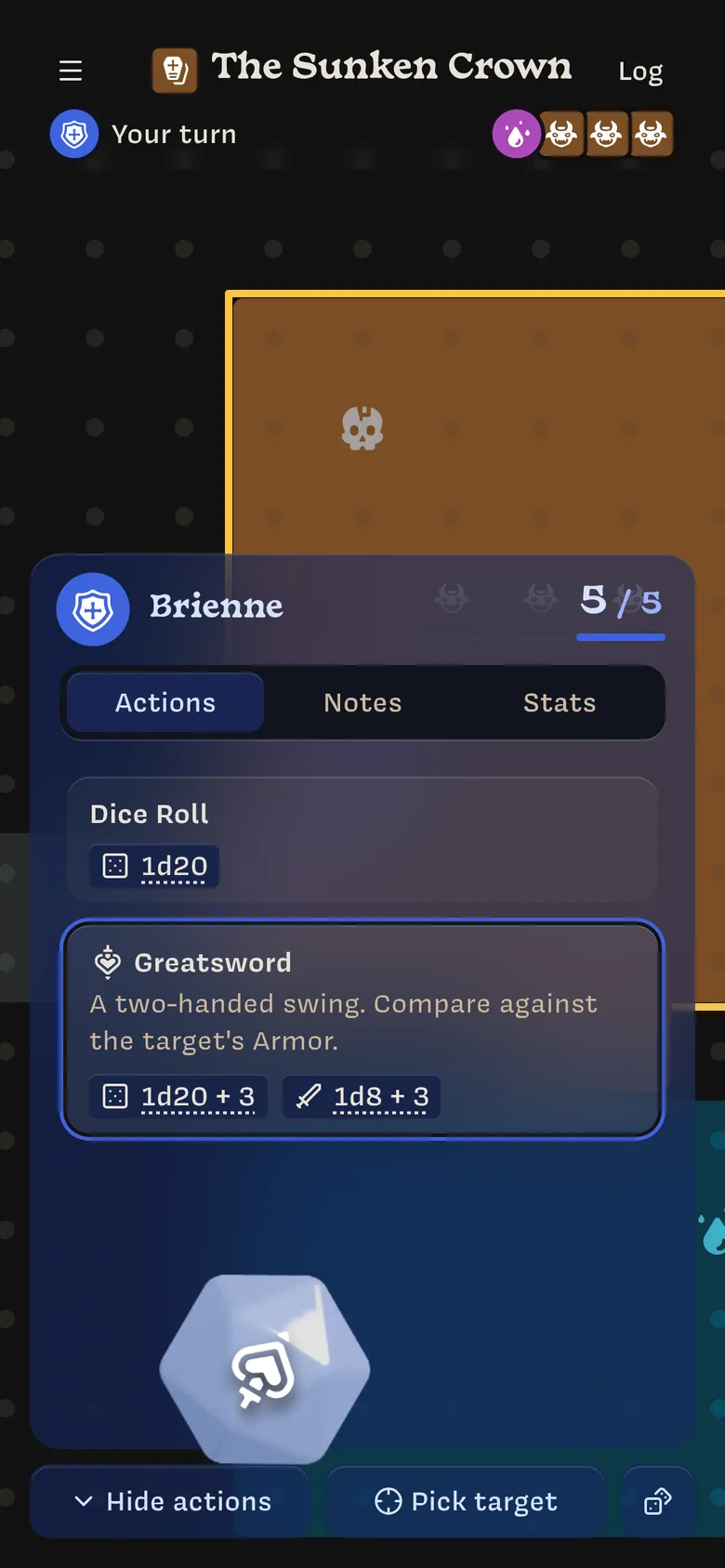
- Show actions pulls up your character sheet with the same Actions, Notes, and Stats tabs as sheet mode. Hide actions puts it away. You can also drag the sheet up and down.
- You see the NPCs on your map. Characters on other maps show as Turn on another map in the turn order.
Moving
On your turn, drag your token to move it. A line shows your path and how many spaces you’re moving. The first time you move each turn, a faded “ghost” token marks where you started.
You can only move your own token, and only on your turn. The Owner can move anyone.
Targeting on the map
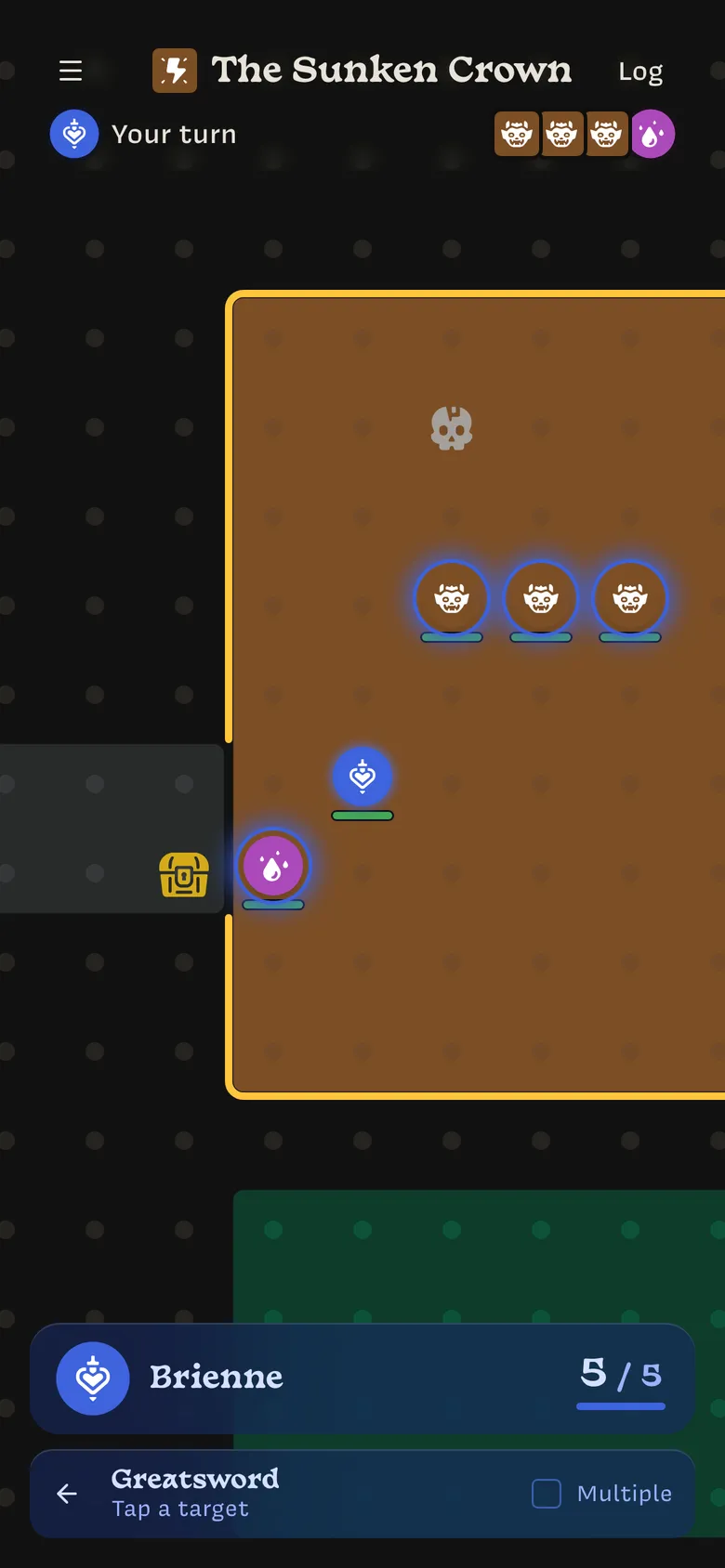
- Choose an action under Show actions.
- Tap Pick target. A bar appears with the action’s name and Tap a target. The tokens you can target glow, and you can still drag the map to find them.
- Tap a token. It gets a ring and a line from your token, and Pick target now shows its name. Nothing is rolled yet.
- Throw the power crystal to roll against your target.
To target several characters, tick Multiple, tap each token, then tap Done (2). Tapping a marked token again unmarks it. Tap ← to back out, or tap Pick target again to choose someone else.
Picking a target works the same way as in sheet mode: it never rolls on its own. You can also throw the crystal without a target.
Last updated on