Maps
A map is a grid of spaces. You paint areas onto it, draw walls and paths, stamp sigils, and place character tokens. Players whose tokens are on a map see it on their phones and can move across it on their turn.
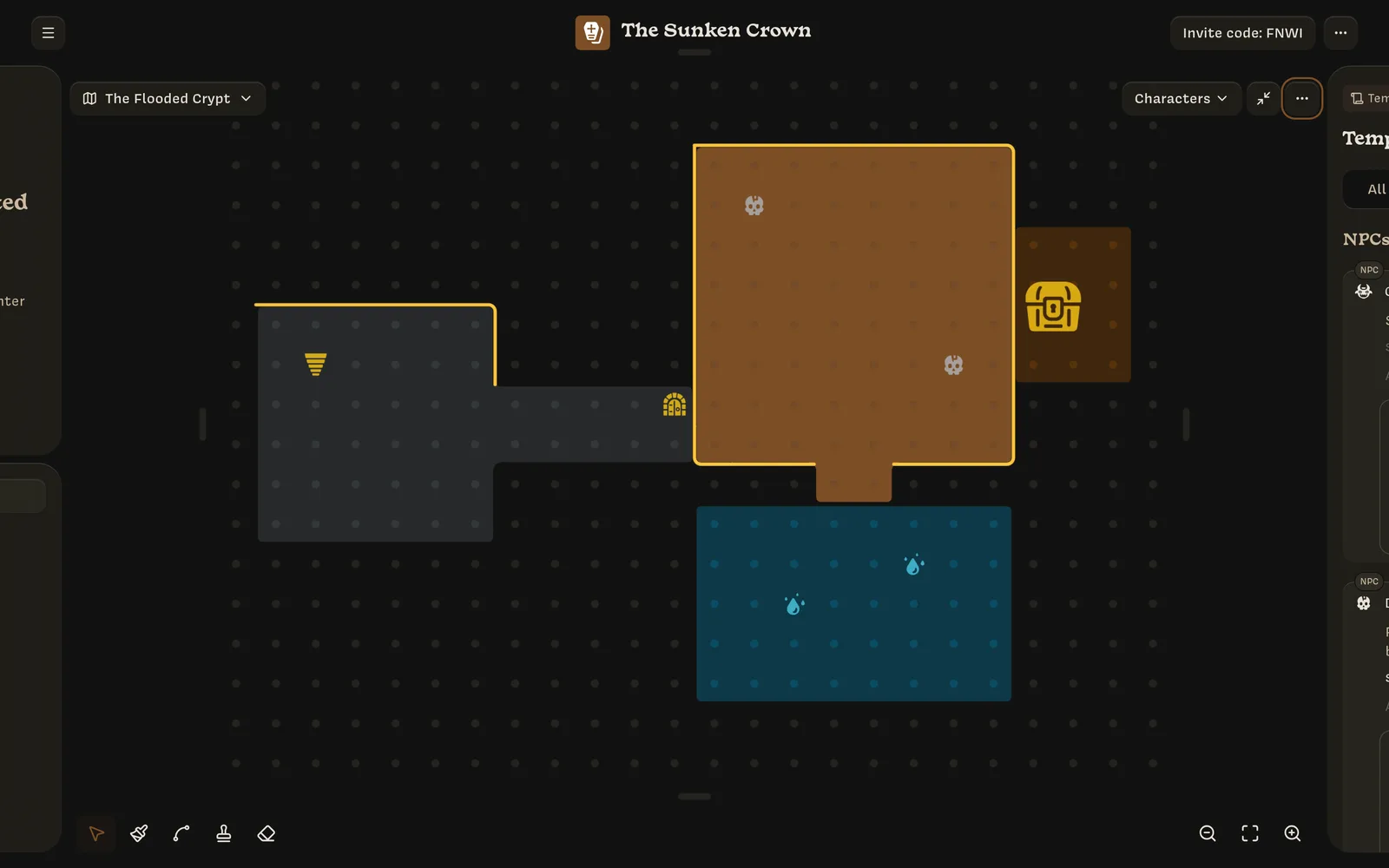
Tools
The toolbar sits along the bottom of the map. Lore remembers the last tool you used.
| Tool | Key | What it does |
|---|---|---|
| Select | V or Esc | Click a token for its menu. Drag tokens to move them. Drag across empty space to select several tokens. |
| Paint | B | Drag a rectangle to fill spaces with a color. |
| Draw lines | L | Click grid corners to draw walls, doors, and paths. |
| Stamp | S | Drag a rectangle to place a sigil in each space. |
| Erase | E | Drag a rectangle to clear spaces, or click a line to delete it. |
Press a tool’s key again to go back to Select.
Paint
Choose a color from the swatches that appear next to the toolbar, then drag across the grid. Each tool remembers its own color.
A stroke either adds or removes, depending on where it starts. If the first space you drag from already has the chosen color, the stroke removes that color; otherwise it adds it. Hold Alt to flip this.
Draw lines
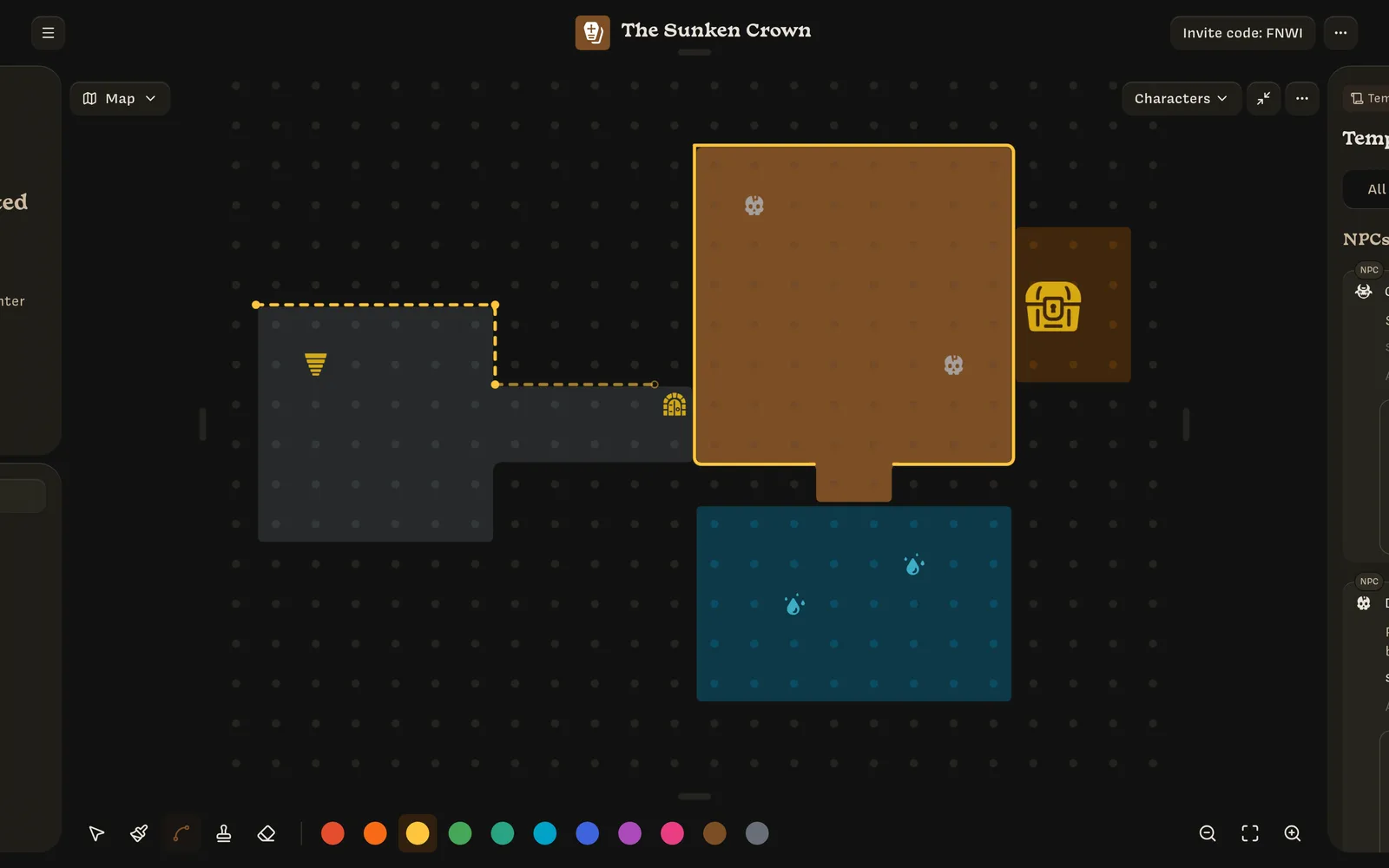
Click grid corners to add points. Each segment snaps to horizontal or vertical. To finish a line:
- click the first point again (once there are three or more points) to close the shape;
- double-click, or press Enter or Esc, to leave it open.
Backspace or ⌘/Ctrl Z removes the last point while you’re drawing.
Stamp
Choose a sigil from the row above the toolbar and a color, then drag. Every space in the rectangle gets the sigil. A 2×2 block of the same sigil shows as one large sigil, like the treasure chest in the example map. Stamps use the same add-or-remove rule as paint.
Erase
Drag across spaces to clear them. If every marked space in your rectangle has a sigil, only the sigils are removed and the paint stays. To delete a line, hover near it until it highlights, then click.
Undo
⌘/Ctrl Z undoes your last drawing change.
Moving around
- Zoom: use the − and + buttons, ⌘/Ctrl − and ⌘/Ctrl +, or hold ⌘/Ctrl and scroll. Zoom goes from 25% to 125%.
- Fit: press
F, ⌘/Ctrl 0, or the fit button to fit the whole map on screen. - Pan: scroll, or hold Space and drag.
- Resize the map: drag the handles on its four edges.
Tokens
Characters appear on the map as tokens. Player characters are circles and NPCs are squares. There are several ways to put a character on the map:
- drag their row from the turn order onto the map;
- use the Characters menu at the top of the map and tick the characters you want on this map, or use Add all and Remove all;
- click an empty space with the Select tool to add an NPC right there (see below).
Drag a token to move it. To take a token off the map, drag it onto the Remove from map area that appears at the bottom.
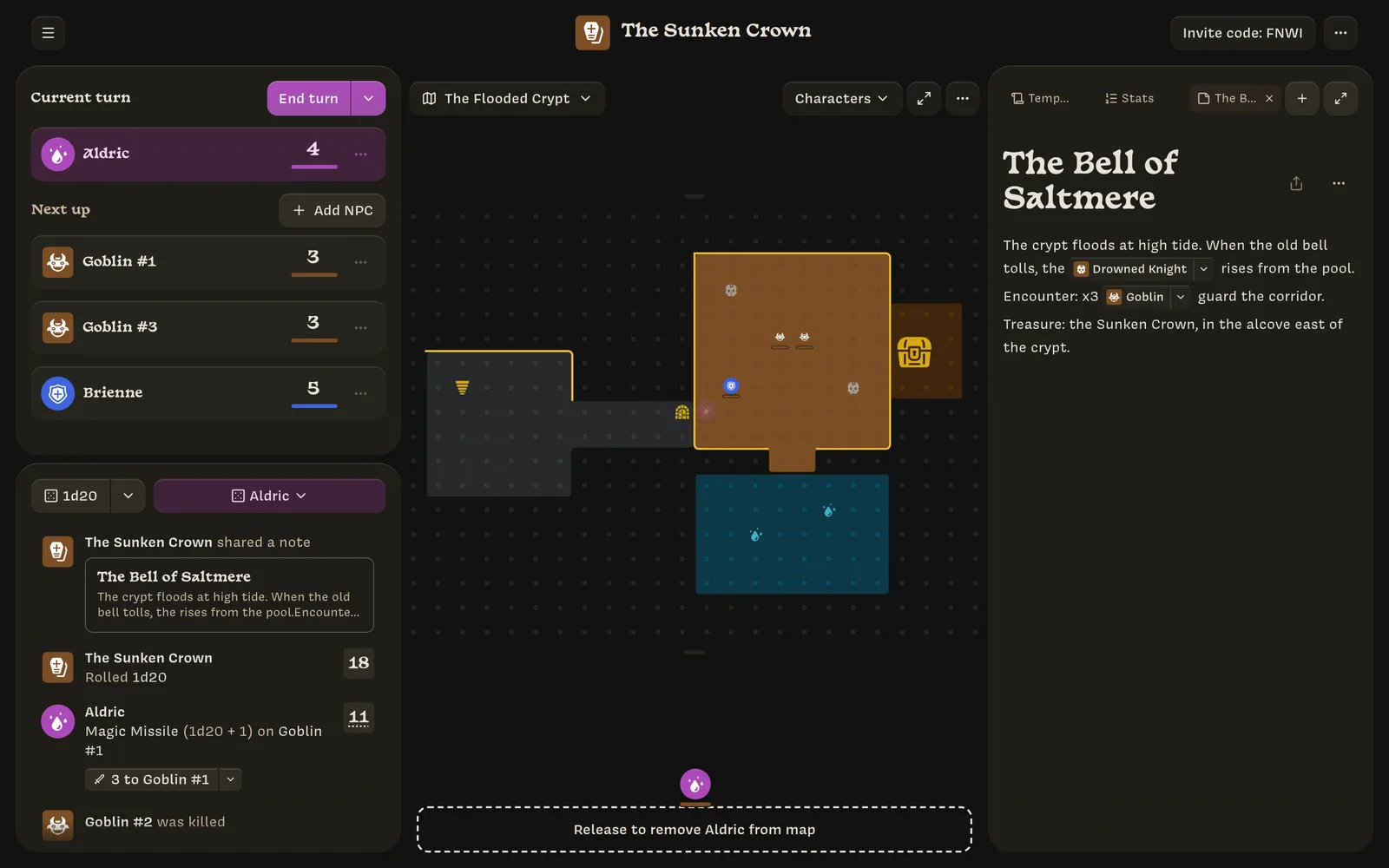
Removing an NPC’s token doesn’t delete the NPC. It’s saved as inactive and appears under Saved NPCs off map the next time you add an NPC.
Faded ghost tokens show where characters stood at the start of the turn. They clear when the turn changes.
Add NPCs from the map
Click an empty space to open the spawn menu. It lists characters from the turn order, recently used NPC templates, and the option to create a new NPC. Type to search your NPC templates.
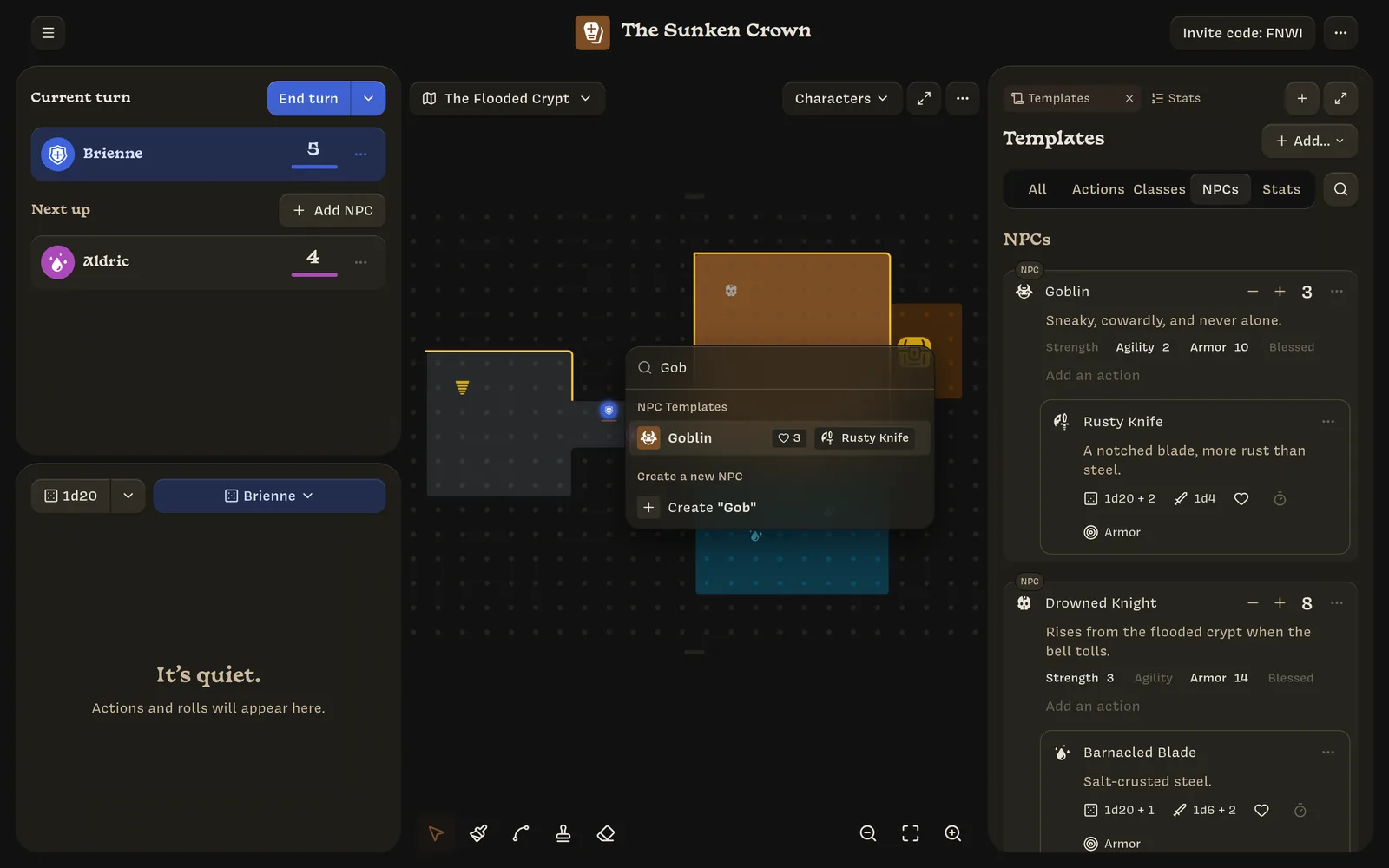
Choose a template to see an editable preview, then click Add 1. To add several, open the ▾ next to Add and set how many (1 to 10). Copies are numbered Goblin #1, Goblin #2, and so on, and placed on the nearest free spaces.
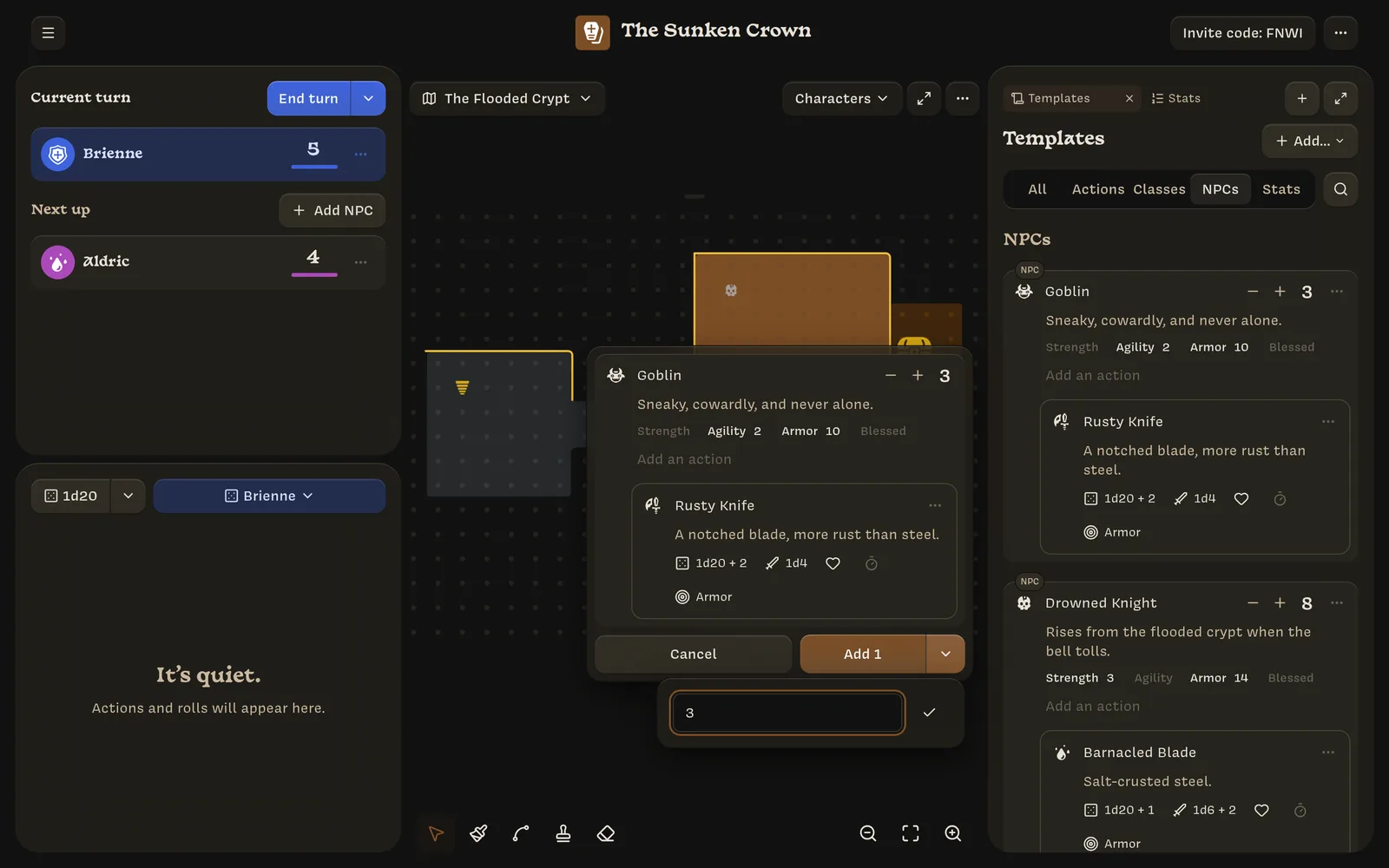
Token menu
Click a token with the Select tool to open its menu:
- Roll dice ›, to roll one of the character’s actions (see Rolling from a token);
- Edit character;
- Size ›: 1x1, 2x2, or 3x3 spaces;
- Make current turn;
- Send to map ›, to move the token to another map;
- Kill.
Multiple maps
A campaign can have as many maps as you like. The map button in the top-left corner of the map (showing the map’s name) lists them, most recently edited first. Small avatars show who is on each map. Click a map to switch to it.
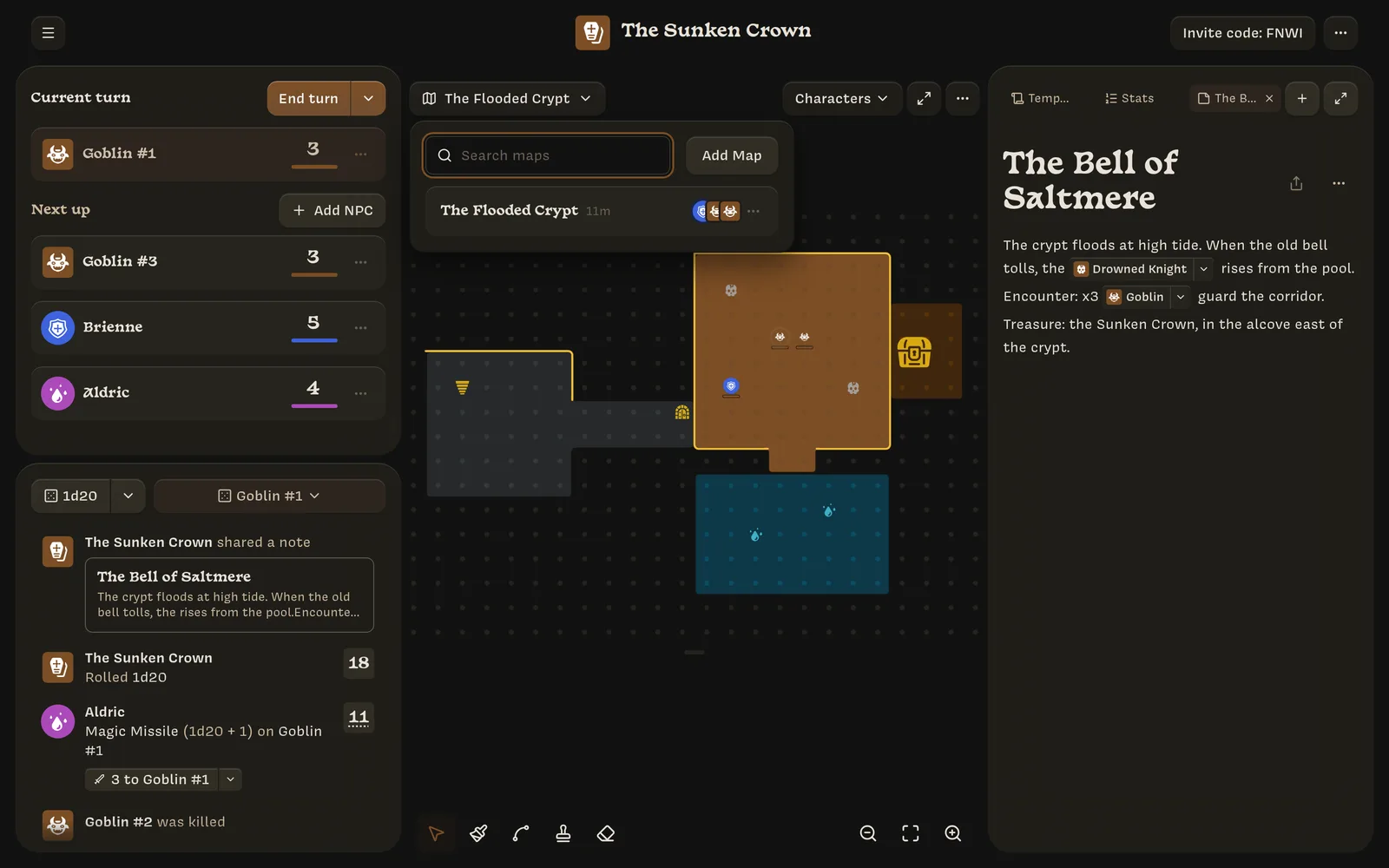
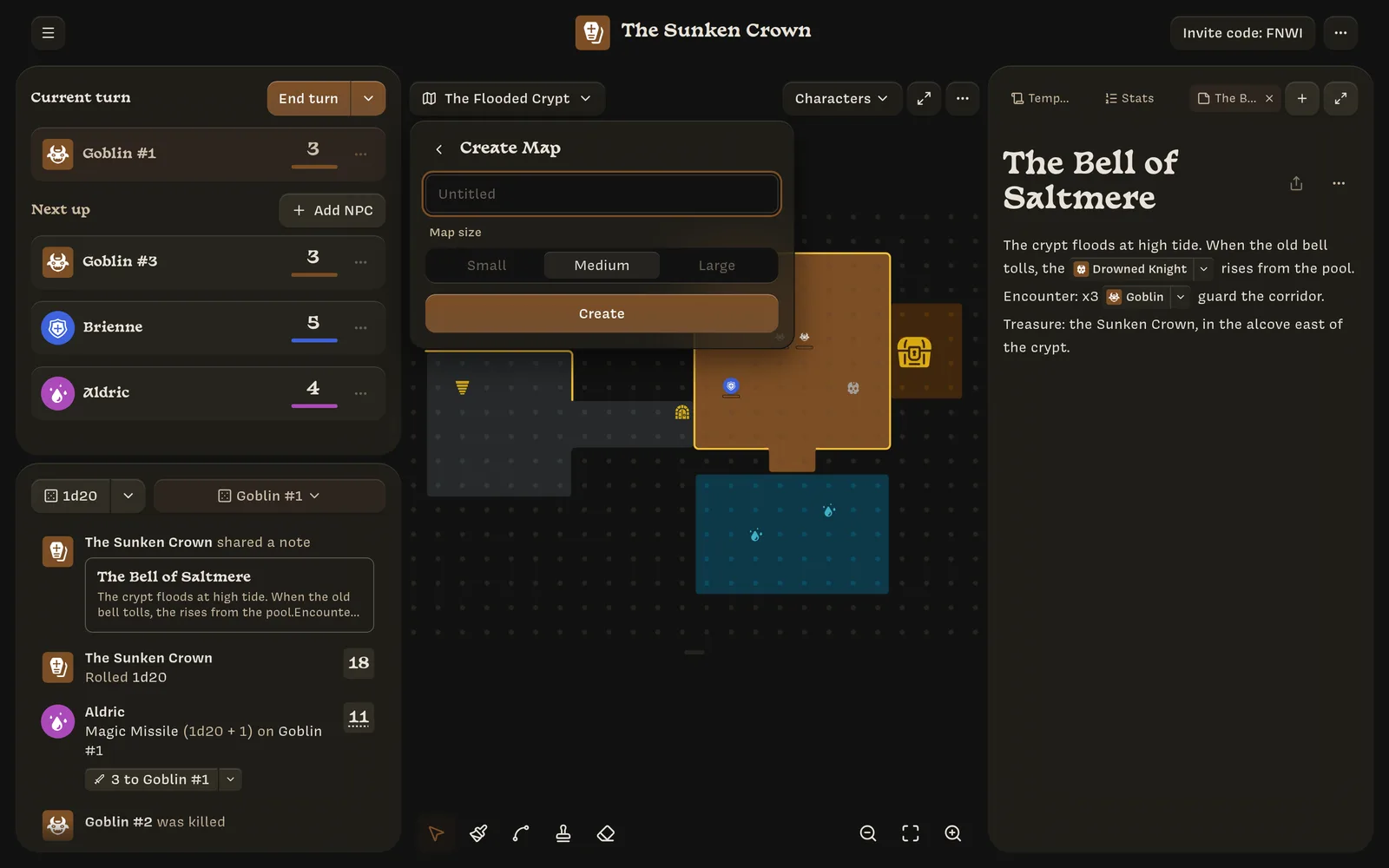
Add Map creates a new map. Give it a name and choose a size:
| Size | Spaces |
|---|---|
| Small | 16 × 12 |
| Medium | 24 × 18 |
| Large | 32 × 24 |
Switching maps only changes what you are looking at. Each player sees the map their own token is on.
Rename or delete a map
The ⋯ Map options button opens the map’s name for editing. Changes save as you type. The same menu has Delete map.
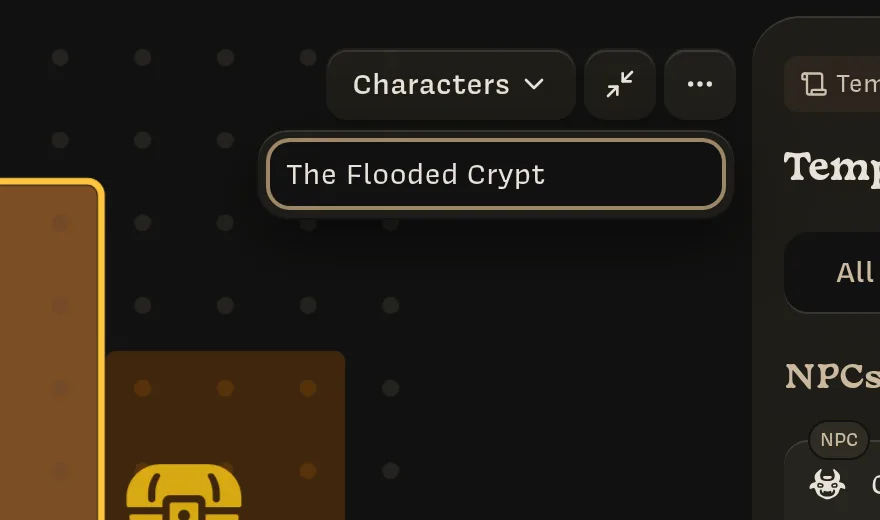
A campaign always has at least one map, so the last map can’t be deleted. Deleted maps are archived, not erased.