Notes and mentions
Notes are your campaign prep: locations, plot hooks, session plans, and secrets. Players don’t see them until you share them.
Unshared notes are hidden, not protected: they’re still sent to your players’ devices. Keep anything you’d mind them reading out of Lore for now. See Who can see what.
Write a note
Create a note from the right panel (+ → New note). Give it a title, then write.
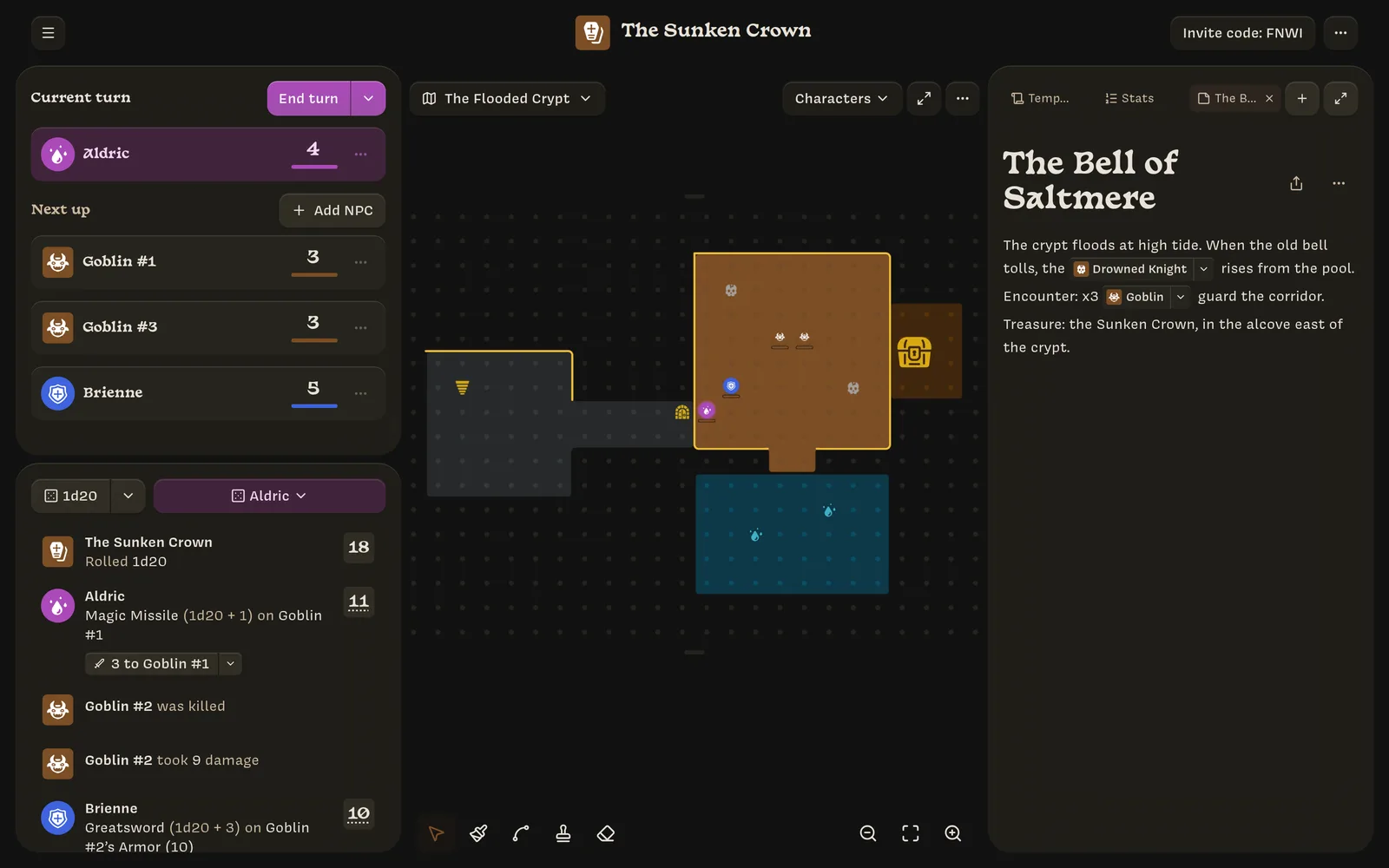
Notes support headings, bulleted and numbered lists, quotes, and horizontal rules. Select text to make it bold, italic, underlined, or struck through.
The Notes list (View all next to Notes) shows every note with when it was last edited. Drag to reorder. A note’s ⋯ menu has Archive note.
Mentions
Type @ in a note to link to something in your campaign: a Stat, player
character, NPC, action, class, map, or note. Keep typing to search, then press
Enter to insert the mention.
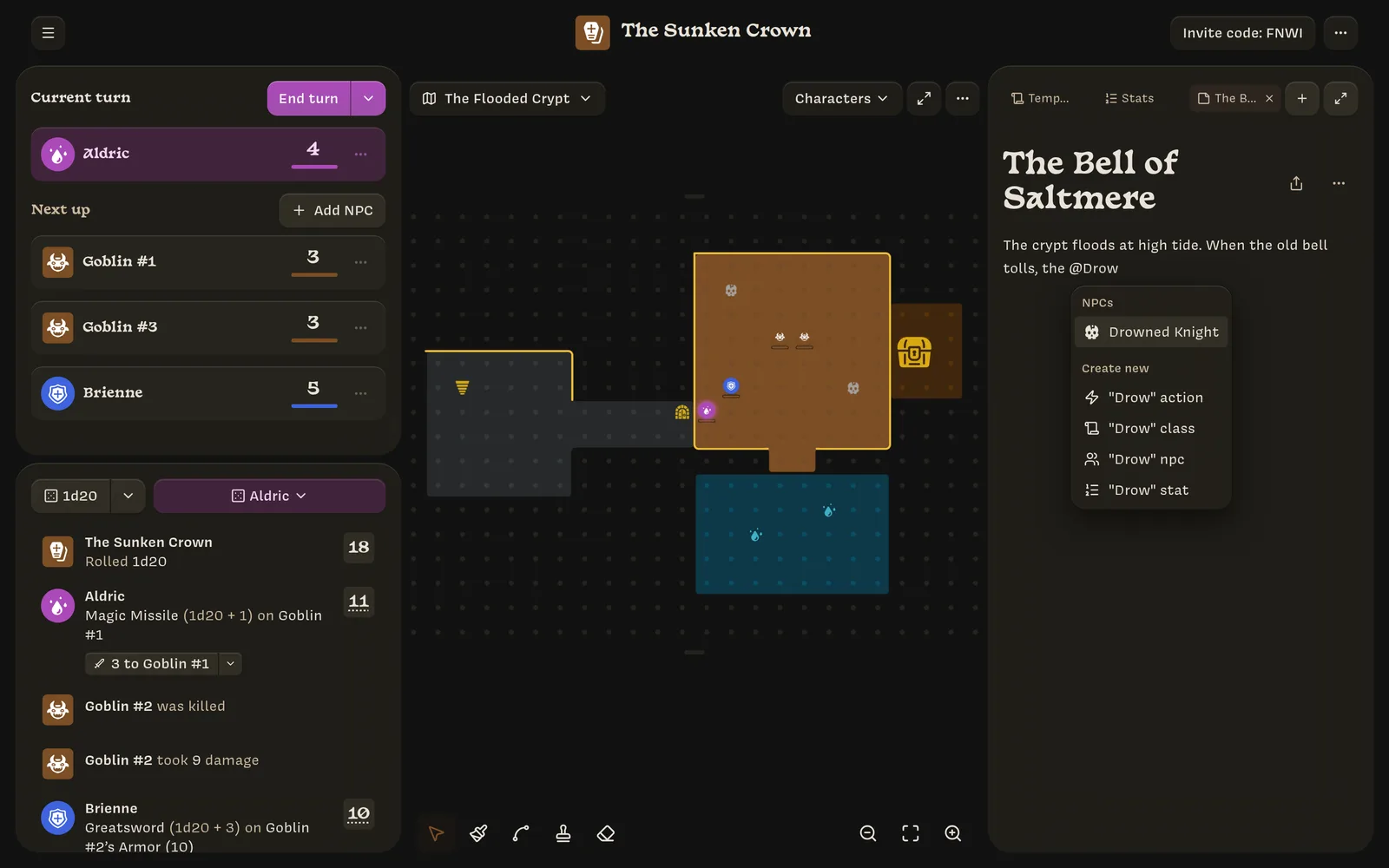
If nothing matches, the Create new options create a template with that name and
mention it in one step. Typing a type name such as npc narrows the list to that
type.
Click a mention to use it:
- Characters, maps, and notes: open them (or switch to that map).
- Templates: hover to preview, click to edit in place. The ▾ menu adds more options.
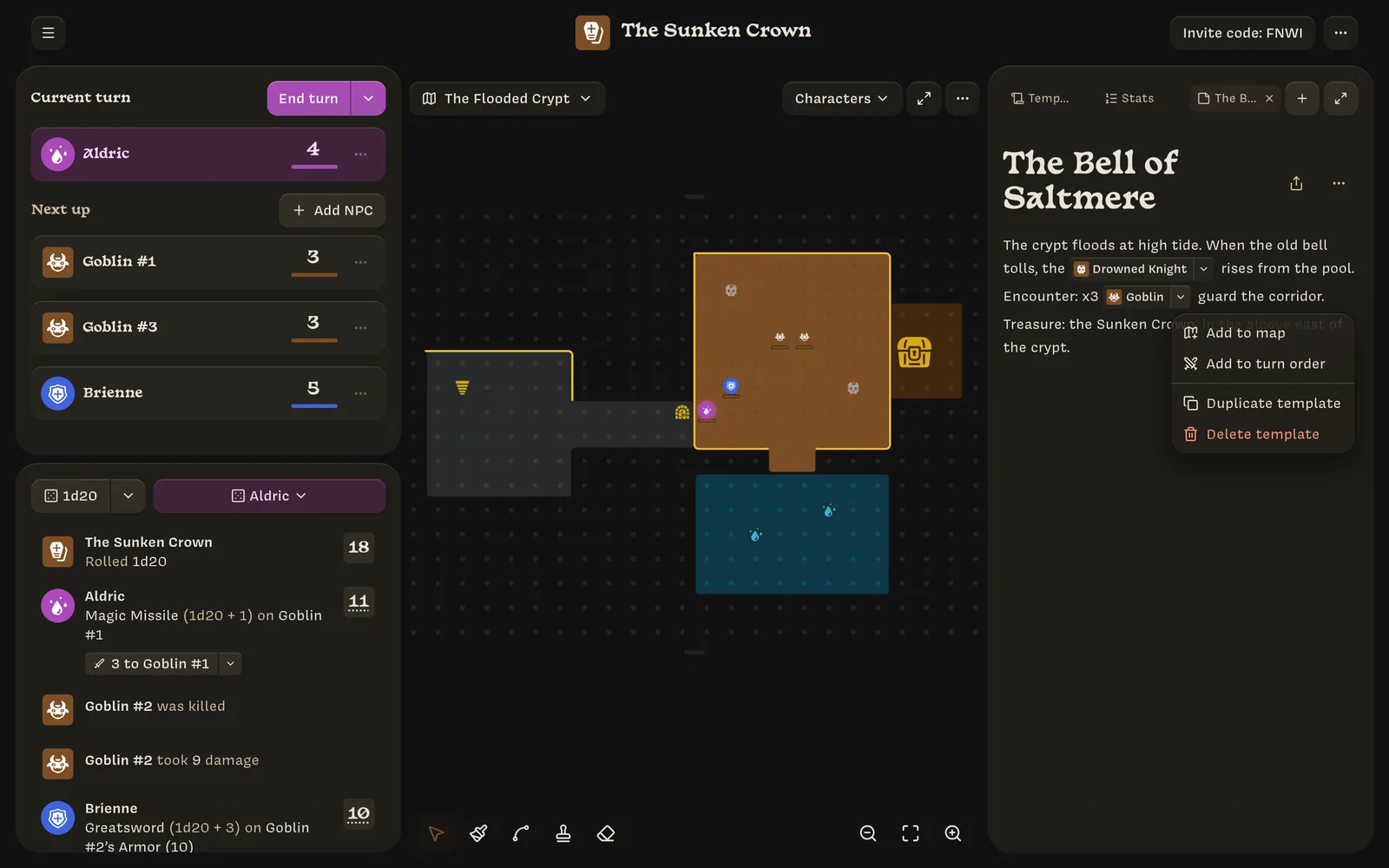
NPC mentions can add NPCs straight from your notes with Add to map or
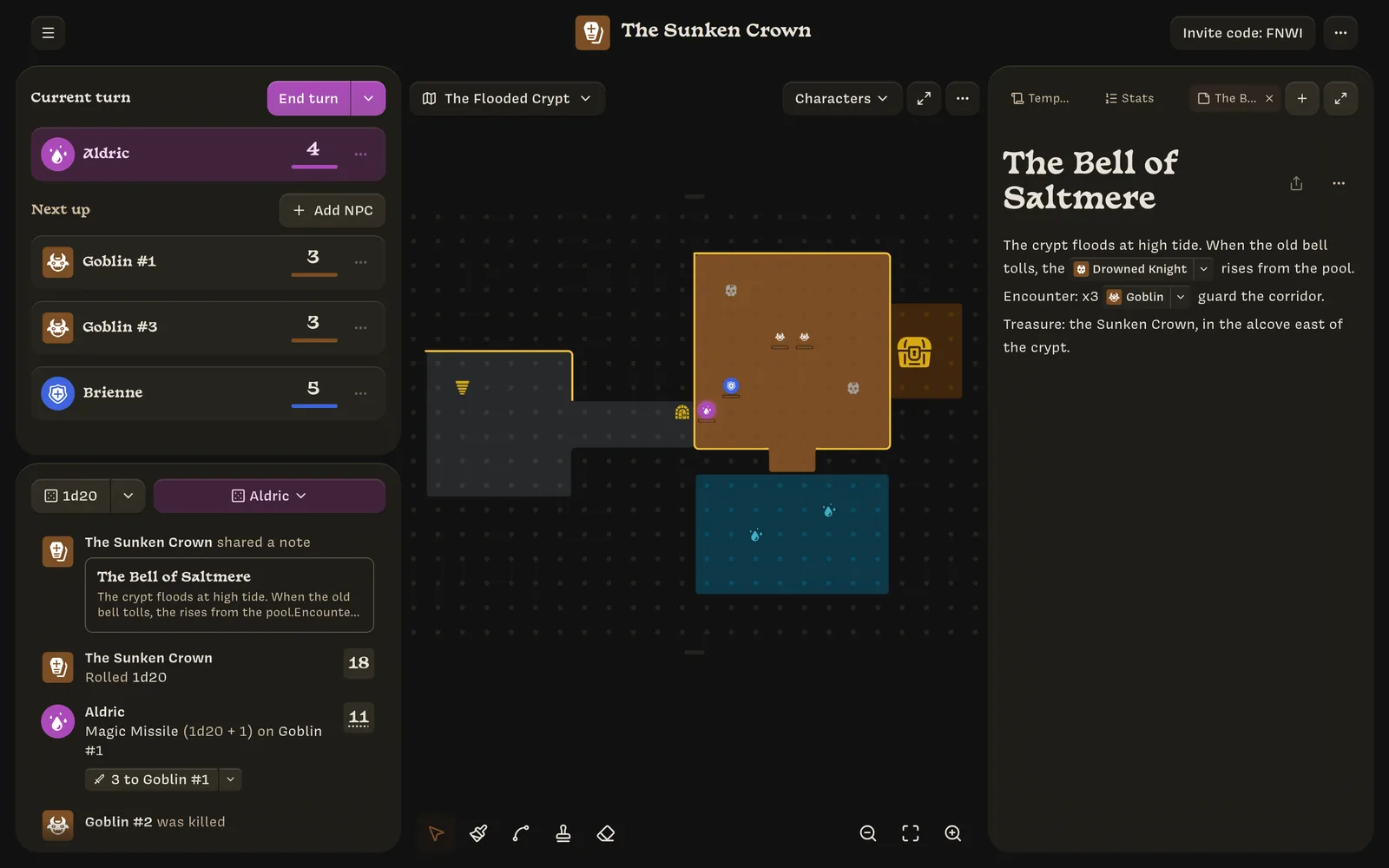
Add to turn order. Write a quantity next to the mention, such as x3 @Goblin or
@Goblin x3, and that number is filled in for you. This works well for encounter
notes: “Encounter: x3 Goblin guard the corridor.”
Action mentions also have Copy to… ›.
Mentions of deleted items are shown struck through.
Share a note with players
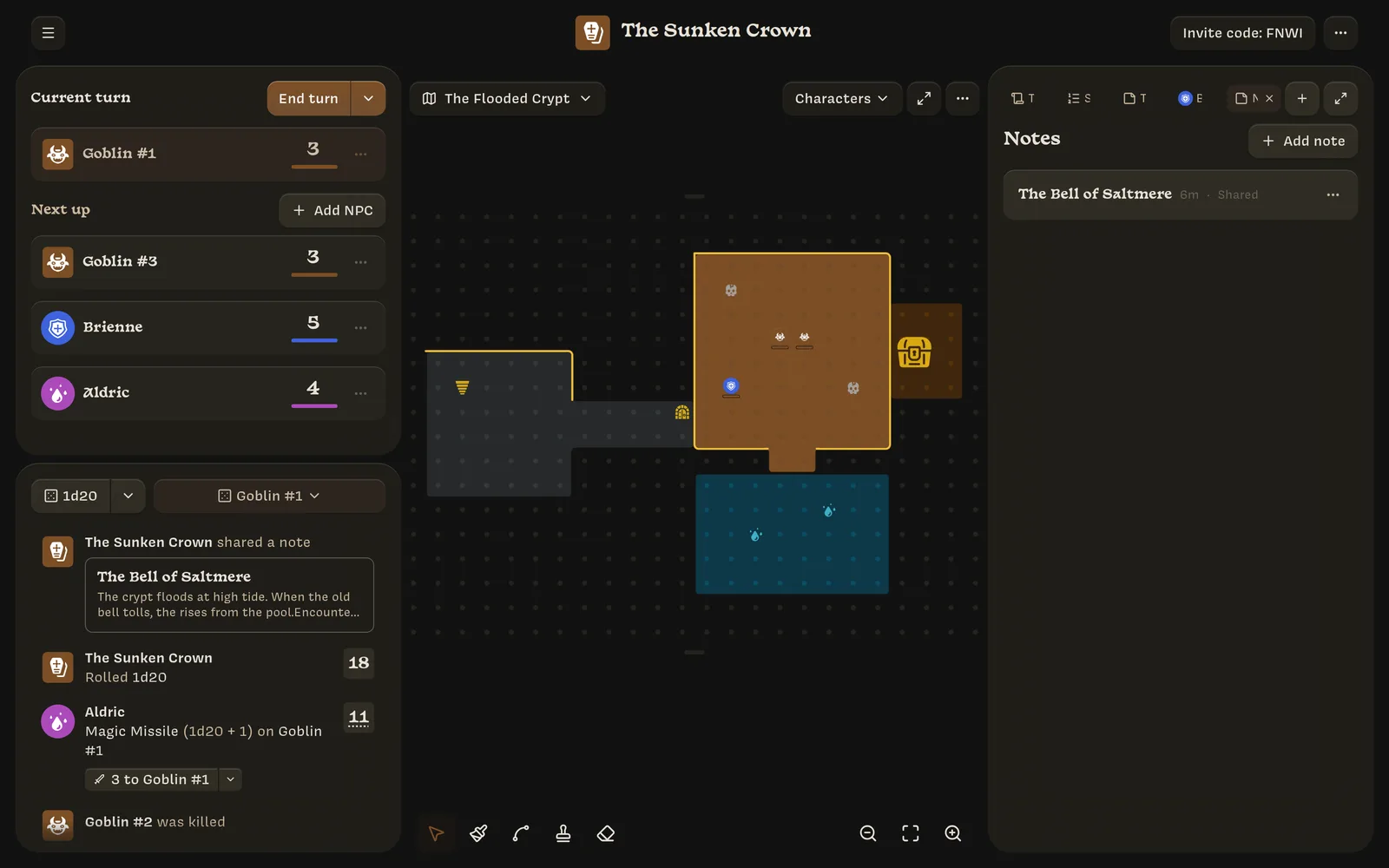
Click the Share with players button (the ↑ icon at the top of a note). Lore posts The Sunken Crown shared a note to the log with a preview, and the note appears on every player’s phone under Shared with you.
Shared notes are live: players see your later edits too. There’s no way to unshare a note yet, so keep secrets in a separate note.